TL;DR

Prime made for students and young adults
- Fast, free delivery for dorm and study essentials
- Prime Video and Amazon Music included
- Member-only deals
Google TV includes an Apps only mode that hides personalized recommendations and focuses the home screen on installed apps. The setting is buried in account settings, and the mode has limitations, including a less convenient route to the Play Store and some menus that remain visible.
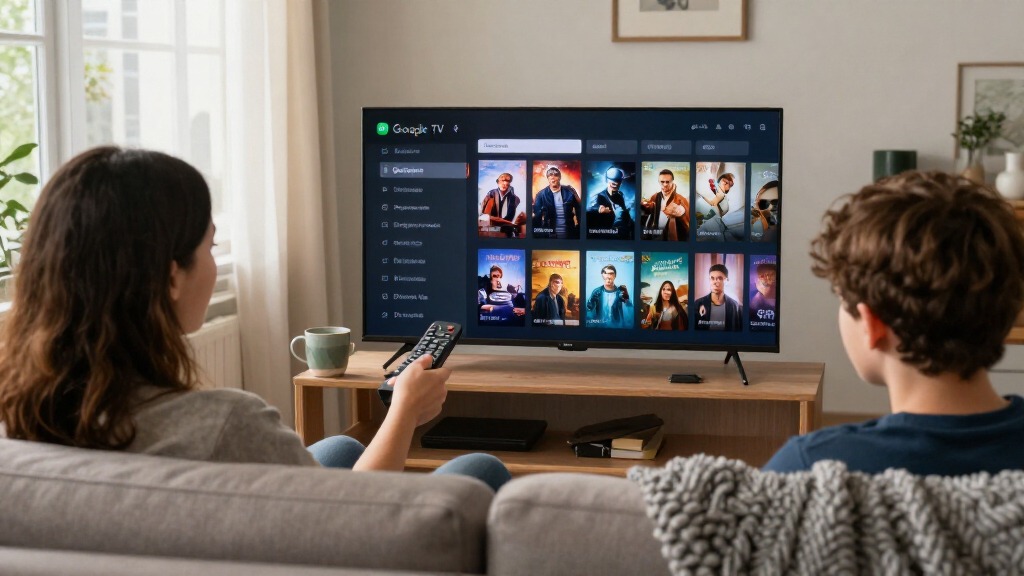
Google TV users can reduce personalized recommendations on the home screen by enabling Apps only mode, a built-in setting that shifts attention to installed apps without requiring a third-party launcher. The option is tucked inside account settings rather than being presented during initial setup, and it comes with limitations, including a less direct way to reach the Google Play Store.
According to XDA Developers, Apps only mode hides personalized recommendations and gives installed apps more prominence on the Google TV home screen. Users can arrange the app icons in their preferred order and remove apps they no longer use. The setting can also be switched off again from the same account menu, returning the device to the standard Google TV experience.
To turn it on, go to All settings, open Accounts & Sign In, select a profile, and enable Apps only mode. The interface changes immediately. The option is not shown during the initial setup process, which may help explain why some users are unaware of it.
The mode does not require downloading another app, and the report says Google Photos screensavers and casting from other devices remain available. However, the home screen may still show a Discover more apps banner, and the shortcut may not work. New apps can still be installed, but the Play Store is not directly available from the app-focused home screen; users may have to find it through the settings menus.
STREAMING INTERFACE • SETTINGS GUIDE
Google TV’s Ad And Recommendation Controls Are Buried In Settings
Apps only mode puts installed apps front and center and hides personalized recommendations. The built-in toggle is tucked inside profile settings, and the simpler screen still has a few trade-offs.
A reversible, Google-provided option that reduces home-screen clutter without adding a launcher.
Four steps to a quieter home screen
The interface changes as soon as Apps only mode is enabled. The option does not appear during initial setup.
Start from the Google TV settings menu.
Account controls are where the toggle lives.
Open the profile whose home screen you want to simplify.
Installed apps take priority; turn it off here to restore the usual view.
Simpler focus, familiar foundations
The mode adjusts the home screen rather than replacing Google TV with a new interface.
Recommendations recede
Personalized recommendation rows are hidden, giving installed apps more prominence and reducing a source of home-screen clutter.
Make apps your own
Arrange app icons in a preferred order and remove apps you no longer use from the home screen.
Built in and reversible
No additional launcher or app is required. Google Photos screensavers and casting from other devices remain available, according to the report.
Less discovery, not total control
Apps only mode suits viewers who want recommendations out of view. A dedicated launcher may offer more customization, with extra setup.
What remains convenient
- ✓Launch installed apps directly from the focused home screen.
- ✓Switch the mode off from the same profile settings.
- ✓Keep casting and Google Photos screensavers available.
What may take extra steps
- !The Play Store is not directly available from the app-focused home screen; settings menus may be the route to install apps.
- !A “Discover more apps” banner and other menus may remain visible.
- !The report describes one TV box; behavior is not confirmed across all devices.
Where the toggle fits
Think of the options as a range from quick cleanup to deeper home-screen customization.
Illustrative comparison based on the report’s description, not a measured device ranking. Projectivy is one launcher mentioned as a more customizable alternative.
What to know before you switch
Observed banners and menu behavior may differ by device. Check your own settings and interface.
What does Apps only mode do?
It hides personalized recommendations and focuses the home screen on installed apps. Some menus or interface elements can remain.
Can I still install apps?
Yes, according to XDA Developers, though you may need to reach Google Play through settings instead of a home-screen shortcut.
Does it remove every ad and menu?
The report does not establish that all advertising or every menu disappears on every device. A discovery banner remained on the tested TV box.
Can I return to the regular screen?
Yes. Return to your profile settings and switch Apps only mode off to restore the standard Google TV experience.
A Built-In Alternative to Launchers
For viewers frustrated by a busy home screen, the setting offers a way to reduce recommendations and advertising without changing launchers or adding software. That matters for people who want a simpler interface but do not want to install a third-party app, adjust accessibility settings, or remap remote-control buttons.
Apps only mode is also reversible and does not add another application to a device’s storage. But it is a limited simplification, not a fully customizable replacement for Google TV’s standard interface. It can make browsing installed apps more direct while leaving some navigation and discovery elements in place.
The distinction matters when choosing between this setting and a launcher. Users who mainly want recommendations out of view may find Apps only mode sufficient. Those looking for more extensive control over menus or home-screen layout may still prefer a dedicated launcher, accepting the additional setup that can involve.
As an affiliate, we earn on qualifying purchases.
Where the Setting Fits
Google TV’s home screen combines app access with recommendation rows and other discovery features. The XDA Developers report describes complaints that recommendations can feel irrelevant and occupy much of the screen, while ads can appear as users browse. Apps only mode is a Google-provided option for changing that experience without replacing the interface altogether.
The mode is also intended for situations such as having guests use the television, when an owner may prefer not to show personalized recommendations. Its practical use can extend beyond that purpose: users can leave the setting enabled as a simpler home-screen layout, or turn it off when they want the usual recommendations back.
The report compares the feature with third-party launchers such as Projectivy, which can provide more customization and consolidate some menus. Apps only mode requires no extra launcher, but it does not remove every menu or provide the same degree of control. The choice is a trade-off between convenience and customization, rather than a complete redesign of Google TV.
Limits Differ Across Devices
The report describes the feature on the writer’s TV box, including a persistent Discover more apps banner and remaining menu items. It does not establish that every Google TV device displays the same elements or behaves identically. The account of the nonworking banner is an observed experience, not a confirmed platform-wide fault.
It is also unclear whether Google will change the setting’s location, remove the banner, or make app installation easier in a future update. The report does not provide a device-by-device compatibility list or identify software versions for the behavior described. Users should check their own device’s settings and interface before assuming the same limitations apply.
Try the Toggle Before Switching
Google TV owners who want fewer recommendations can enable Apps only mode from their profile settings and see whether its layout suits their needs. Before turning it on, users who expect to install apps may want to confirm that their usual apps are already available, since the Play Store is harder to reach from the simplified screen.
The setting can be disabled through the same account menu if the remaining banners or menus are inconvenient. No Google announcement about changes to Apps only mode is included in the report, so any future interface updates remain unconfirmed.
Key Questions
What does Google TV’s Apps only mode do?
It hides personalized recommendations and focuses the home screen on installed apps. Users can reorder app icons, while some menus and interface elements may remain.
How do I turn on Apps only mode?
Open All settings, choose Accounts & Sign In, select your profile, and enable Apps only mode. The interface should switch immediately.
Can I still install apps in Apps only mode?
Yes, according to XDA Developers, but the home screen does not provide a convenient Play Store shortcut. The report describes reaching Google Play Store through the settings menus instead.
Does Apps only mode remove every ad and menu?
The report says the mode hides personalized recommendations, but it does not establish that all advertising or every menu disappears on every device. A Discover more apps banner and other navigation elements remained on the TV box tested.
Can I switch back to the regular Google TV home screen?
Yes. Return to the same profile settings and turn Apps only mode off to restore the traditional Google TV experience.
Source: XDA Developers
Halloween Picks
halloween
As an affiliate, we earn on qualifying purchases.